
PageTrack Collect
This is an extension created for in design that will allow the user to specify a naming convention, storage, location, and PDF preset for the collection print-ready PDFs for final output.
Installation
Mac
- Using the following link, please download PageTrack Collect.
- Unzip the file by double clicking in the PageTrack Collect.zip file.
- Open the folder PageTrack Collect created by unzipping the file.
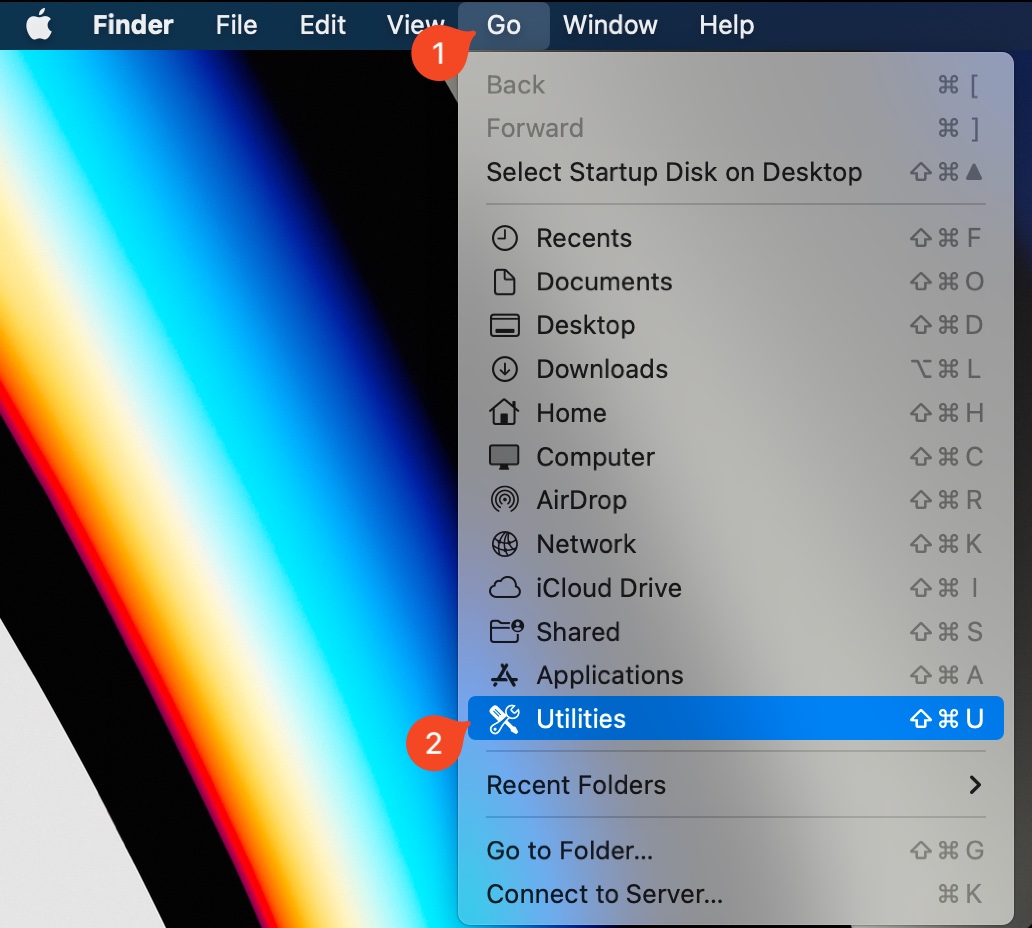
- Open Terminal by choosing Go from the Finder menu and clicking on Utilities.
![Open Utilities, Terminal]()
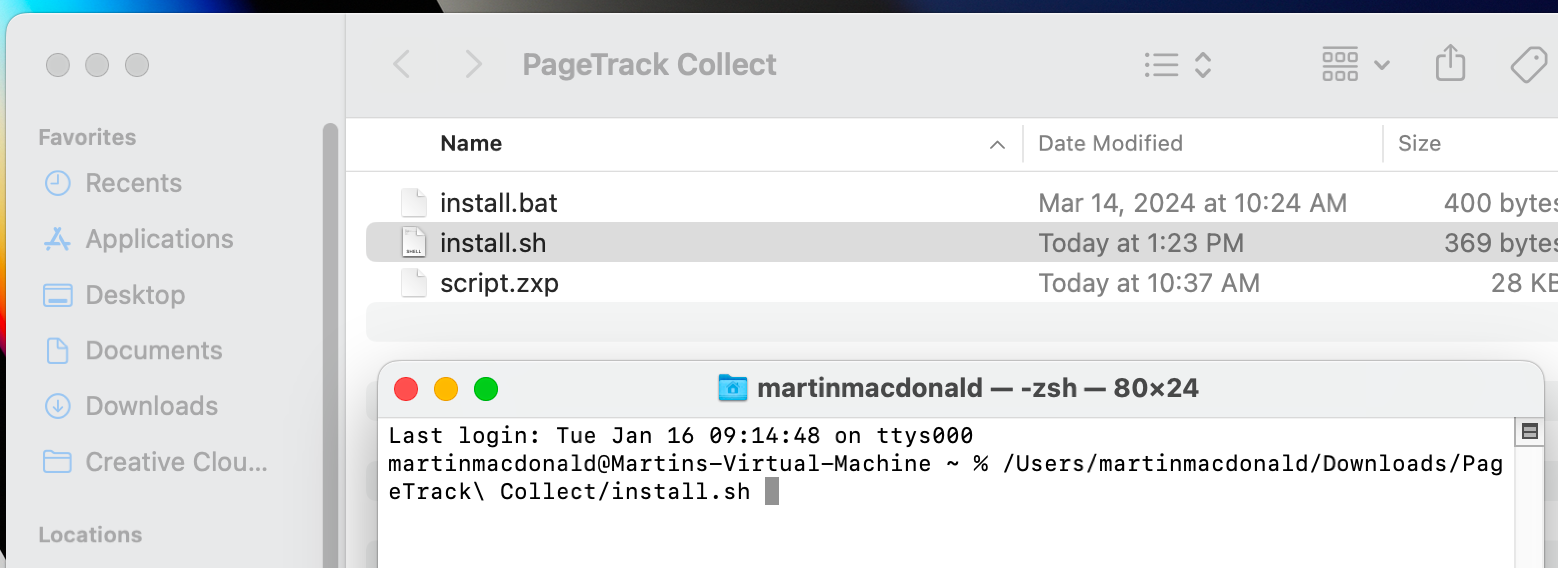
- From the Finder window you opened in step #3, drag the file called install.sh to the Terminal window you opened in step #4.
![Run script in Terminal]()
- Click in the Terminal window to activate it and then press Enter to run the script.
Video of the process
Configuration
- Open InDesign.
- Choose Window -> Extensions -> Export PDFs.
- In the palette that opens click on Settings.
- Define the Document Naming Convention, Output Subdirectory Naming Convention, select the preferred PDF Export Preset, and set the PDF Output Directory.
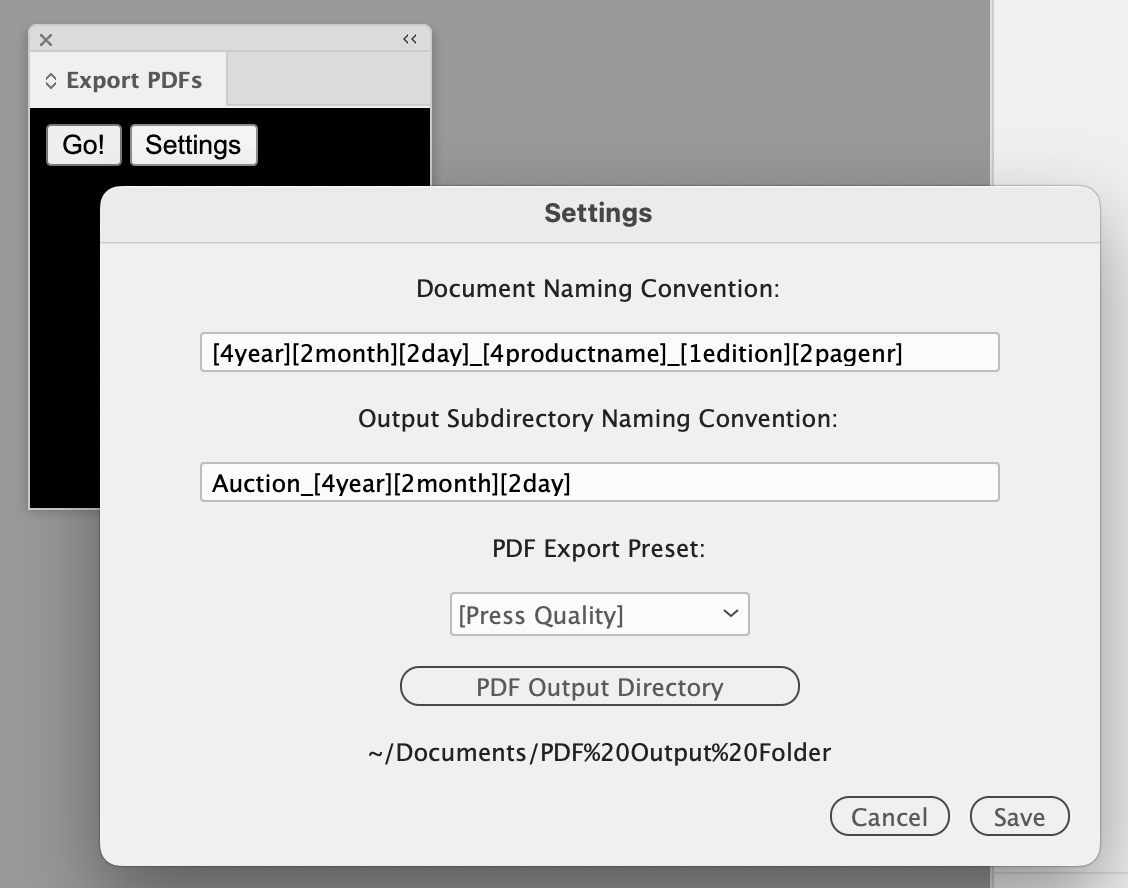
Document Naming Convention - SCS will provide you with the Document Naming Convention you are currently using. We use the same variables for configuring the document naming convention here as we do elsewhere in Scoop. We will explain those variables below. The example in the screenshot provides a reference for all of the available variables. The number preceding each variable indicates the number of characters to display for that given variable. When you go to export PDFs, you can use these same variables to make the PDF Output Name. At that time, you can change the sequence of the variables, replace the variables with plain text, or add/remove separators in the names.
Variable definitions
- Year - can be shown as The full four-digit year by using [4year] or as the two-digit year by using [2year]
- Month - Should only be used as [2month]
- Day - Should only be used as [2day]
- Section letter - Even though this doesn’t necessarily seem to make sense, it’s a leftover from something that existed for a long time and Scoop. The section letter is represented in the naming convention, using the term edition. Therefore, if you wanted to display the section letter you would use [1edition]
- Page number - The page number is represented [pagnr] preceded by number. The number will represent the number of digits shown for the page number. It is recommended that you use at least the number 2. In the case of single-digit pages, the page number is always zero filled to the left.
Output Subdirectory Naming Convention - When the PDFs are exported, they will be placed into a subdirectory following the naming convention you assigned in this field. The options for using variables in this field are the same as those of the document naming convention. You should be staying away from the use of the edition or page variable. It is possible to create subdirectories for each physical section of the paper. In that case, you could use the [edition] variable to create a sub-folder for each of the sections.
PDF Export Preset - This field will allow you to select from any of the PDF presets you have in existence for your instance of InDesign.
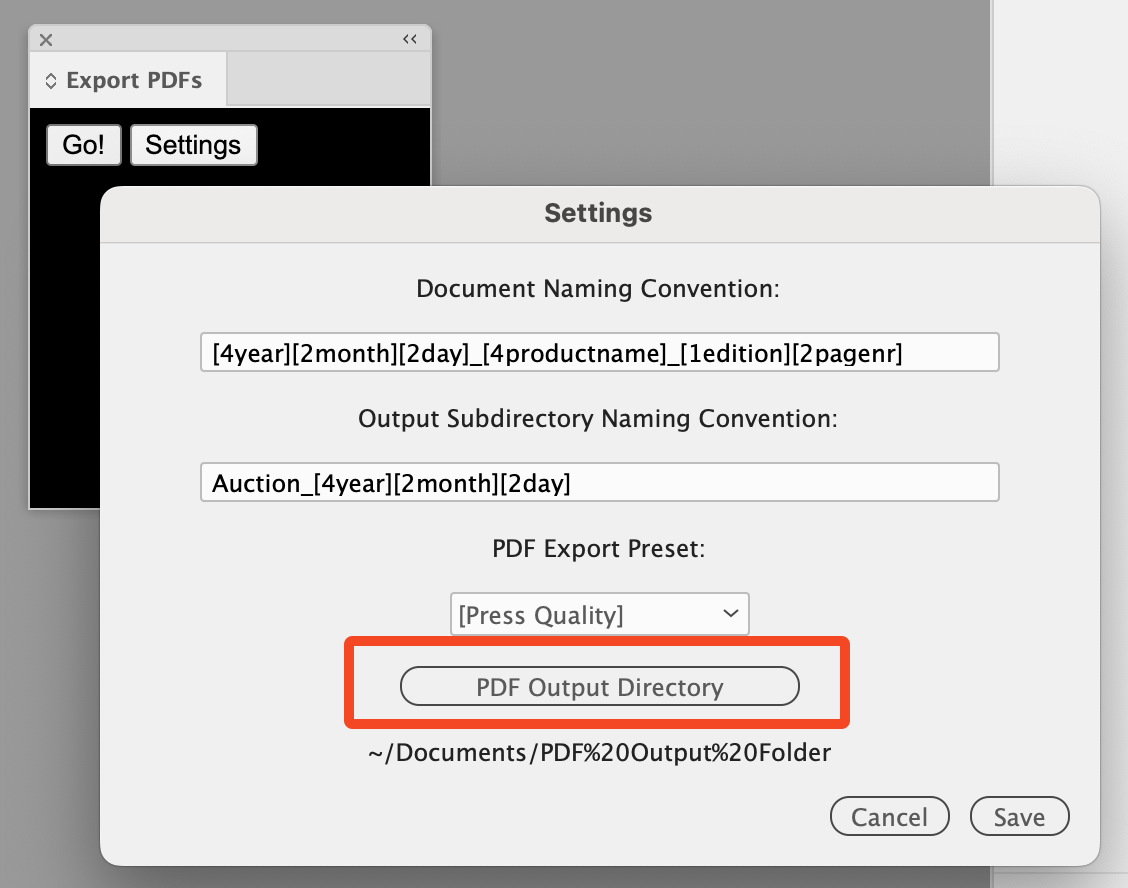
PDF Output Directory - Click the PDF Output Directory button to browse to the location you would like to be the starting point for saving your PDFs. Subdirectories following the Output Subdirectory Naming Convention will automatically be created each time you run the extension and the resulting PDFs placed in them.
All of these settings will be saved in the background so you don’t have to configure this every time you open the extension to export PDFs. It may be necessary to change the Document Naming Convention or the Output Subdirectory Naming Convention from time to time depending on your methodology and publications.
Running the Extension
After configuring the Extension, you can execute the task by clicking on the Go! button. 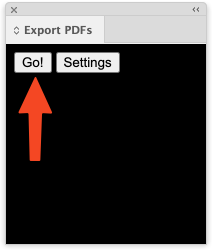
Once Go! is clicked, a dialog will appear. This is the PDF Output Name override dialog. You can change the PDF Output Name from the default or the last name you used.
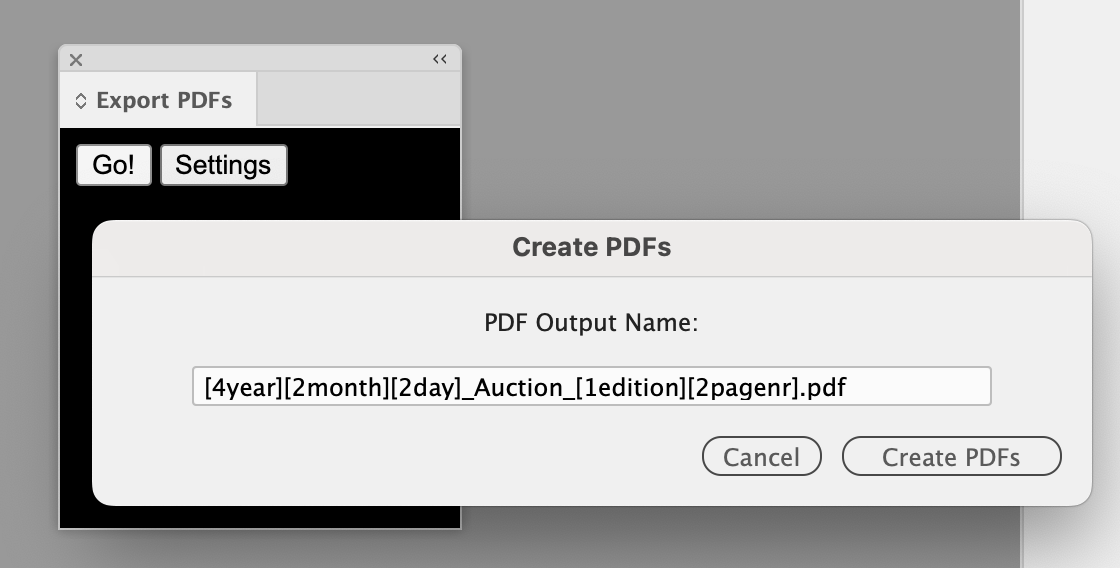
Once you are content with the naming convention to be applied to this export, click the Create PDFs button.