Refreshing Jumped articles
It happens that an article, after it has been placed and jumped, may be updated in Scoop. The instructions below outline how to refresh the article on the page.
Conditions
- An article has been placed and jumped.
- The page is CLOSED or the article is checked-in.
- Someone has edited the article.
Steps
You have been notified that an article has been updated in Scoop. Follow the steps below to reflow the article and update all segments of the jump.
- Open the page on which the article’s first segment is placed. If you already have the page open, move on to step #2.
- Activate the Scoop Articles palette.
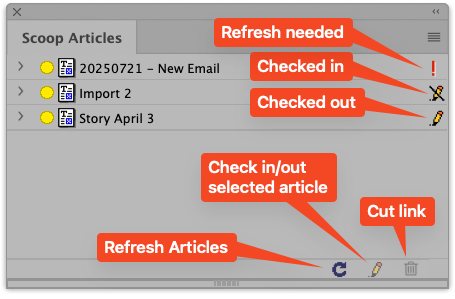
- Click on the Refresh Articles icon to refresh the articles on the page. You will find it at the bottom of the Scoop Articles palette. It is a blue circling arrow icon. This will update the article on the current page and make it available for the jump page.
![Scoop Article Palette]() Click the Refresh Articles icon to update all the articles on the page.
Click the Refresh Articles icon to update all the articles on the page. - Save the first page.
- Open or activate the jump page.
- Using the Regular selection tool, select the text frame containing the jumped story.
- Right-click on the selected text frame.
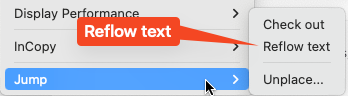
- At the bottom on the contextual menu choose Jumps → Reflow text.
![Reflow text]()
- Save your changes.