
Scoop eLibrary is a browser-based archive for editorial content from your newspaper. Scoop eLibrary provides both a Simple and Advanced search capability. This document will outline how to use the Basic and Advanced search.
To reach the website hosting your instance of Scoop eLibrary ask your SCS support staff for the URL to your site. The URL will be similar to URL for your PageTrack server.
http://<YourServerNameorAddress>/eLibrary
Main Screen
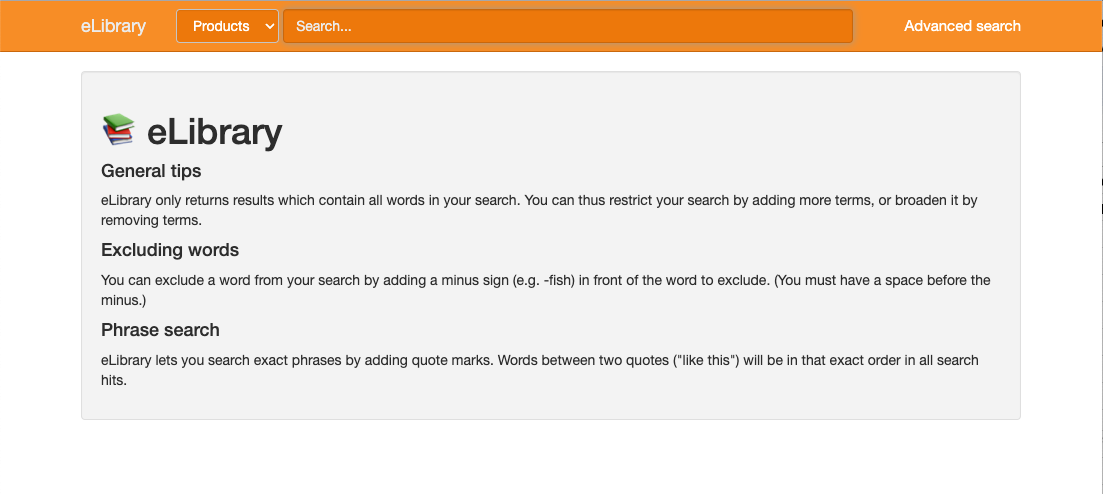
The main screen of Scoop eLibrary is shown below with the Search box at the top center area of the screen.
Searching
Basic Search
Entering search words in the Search box and pressing enter will perform a search for you and list the results.
Single word
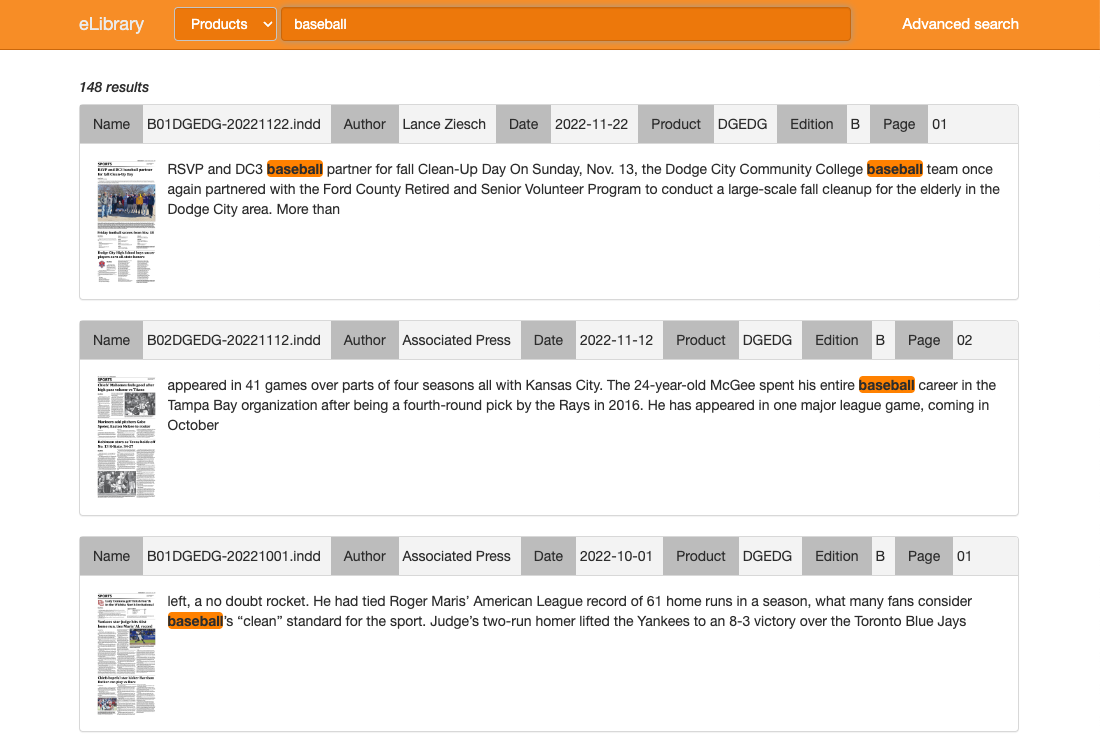
Searching for the term baseball results in any articles with the word baseball being returned as a result. Note there are 148 results.
Multiple words
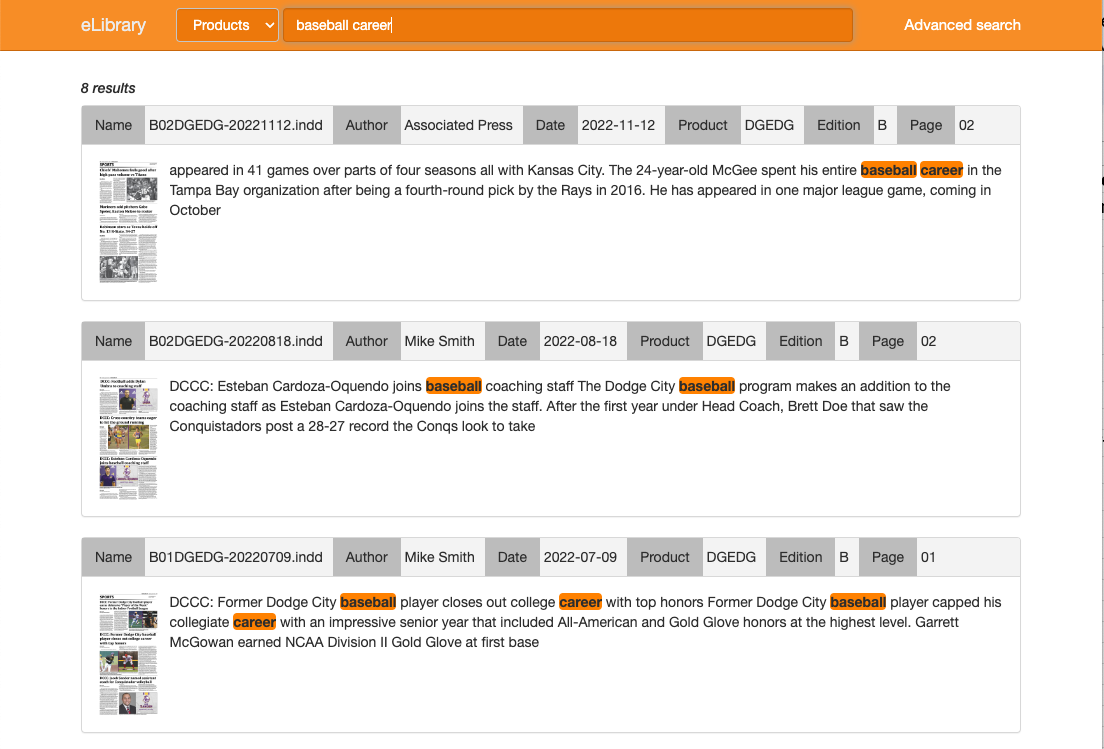
The Scoop eLibrary search will assume spaces between words to be the boolean function AND. This is to say, if you add the word career after baseball, the search will be interpreted as baseball AND career. The results will include any articles that have those two words anywhere in the article. You can see the original 148 results decreased to eight.
Exact phrase
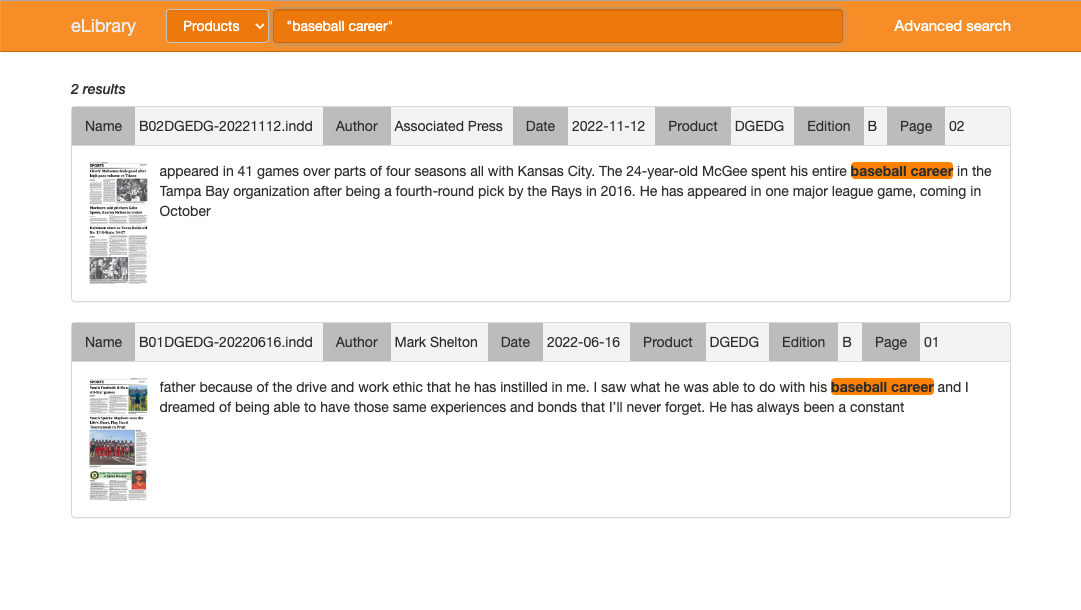
Adding quotes around words turns the search into an exact phrase match. Typing “baseball career” means you want to find the exact phrase “baseball career”. You can see the result count of two articles.
Paper specific searches
To the left of the Search box is the Products pull-down. You can use this to limit your search to specific papers. Click on the pull-down and place a checkmark next to the Product(s) to which you want your search restricted.
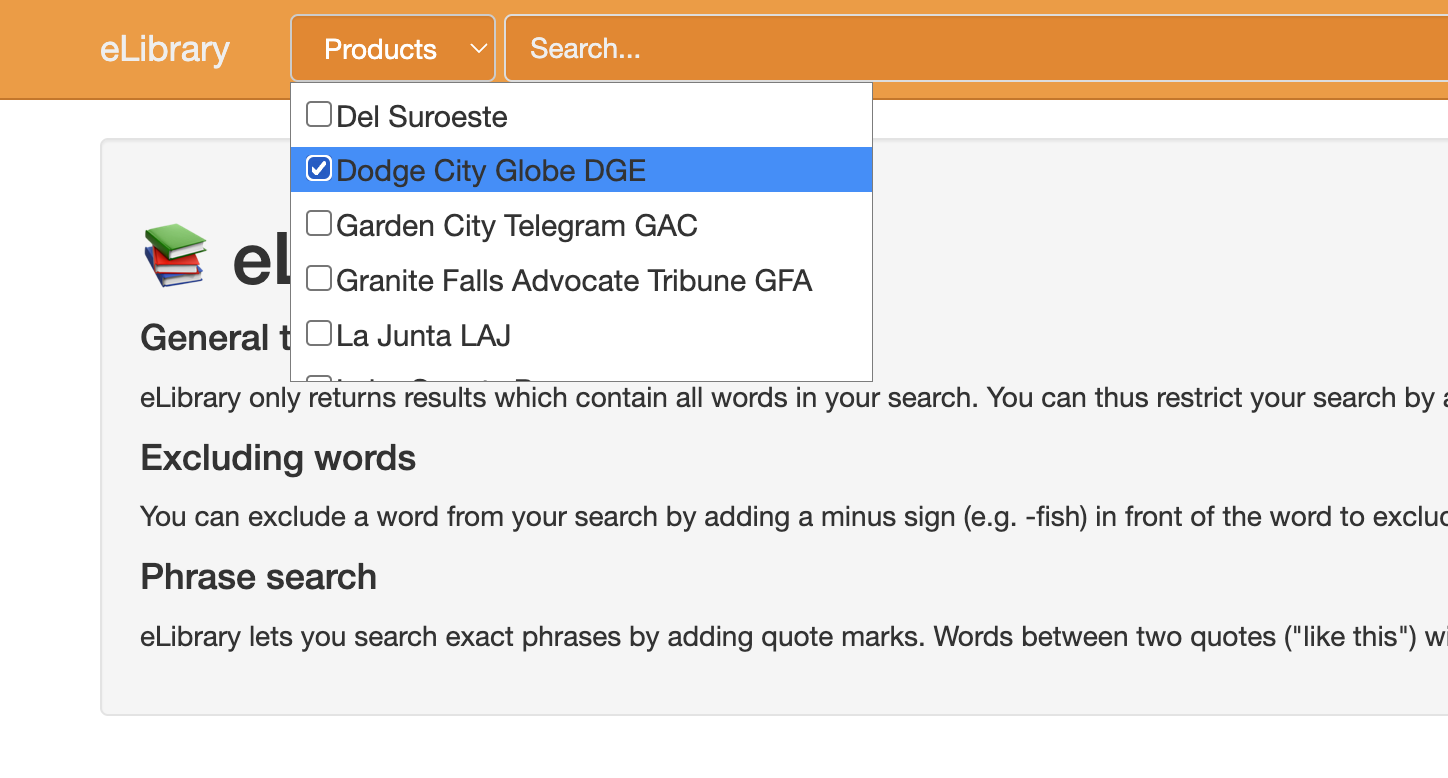
Scoop eLibrary will remember your choice for future searches. If you need to reset your product search you can do this two different ways.
- You can simply remove the checkmarks from the Product(s) you marked.
- You can click the Advanced Search button to the right of the Search box, click the Reset button at the bottom of the dialog, and click Search.
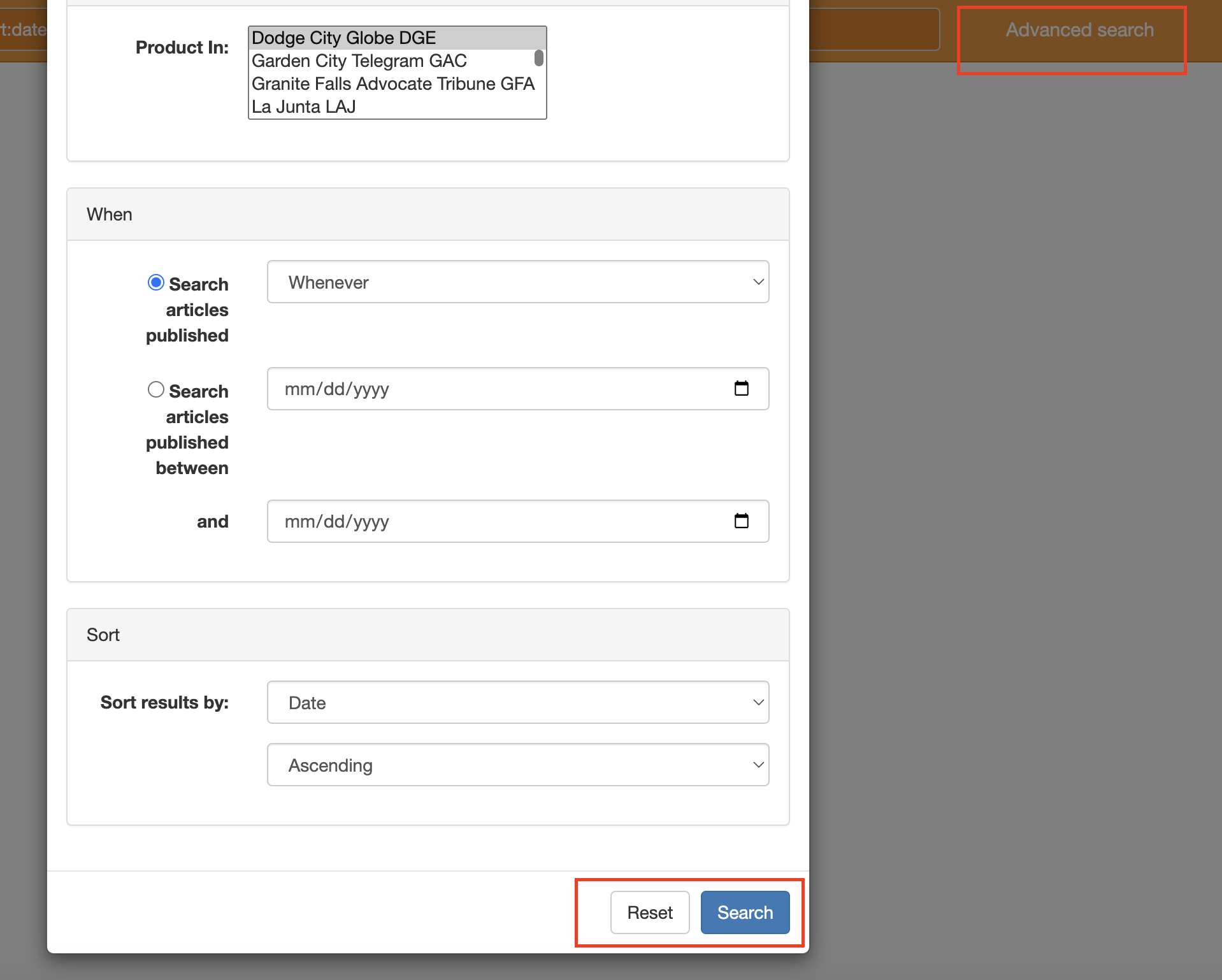
Advanced Search
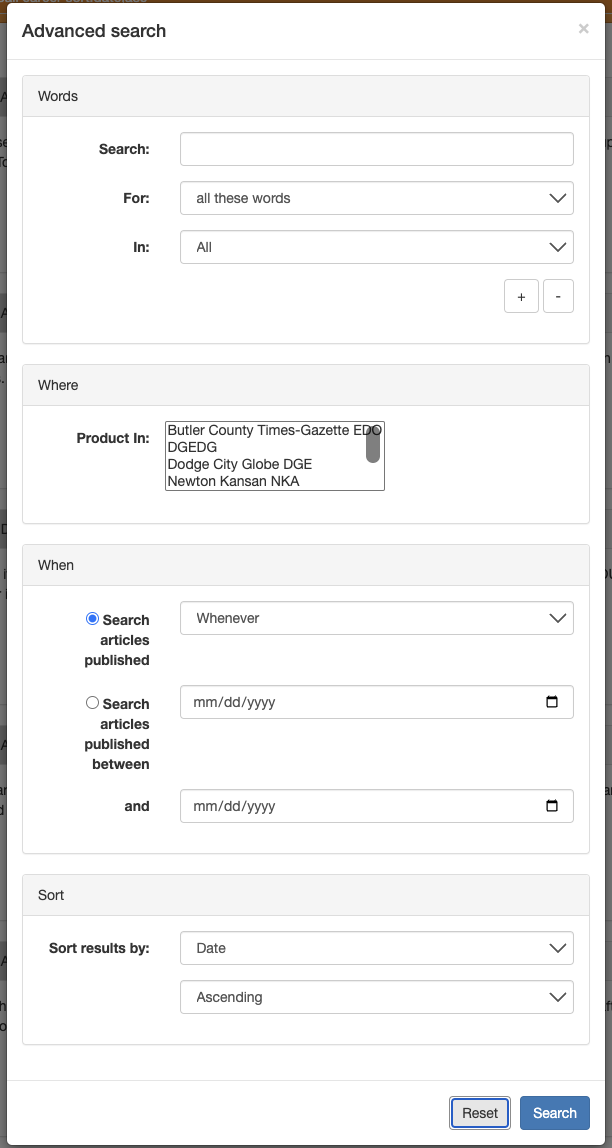
The Advanced Search allows users to create more precise searches.
Exact Phrase
Instead of using the quoted option discussed above, users can use the For pulldown option to create a search for a phrase.
Element level
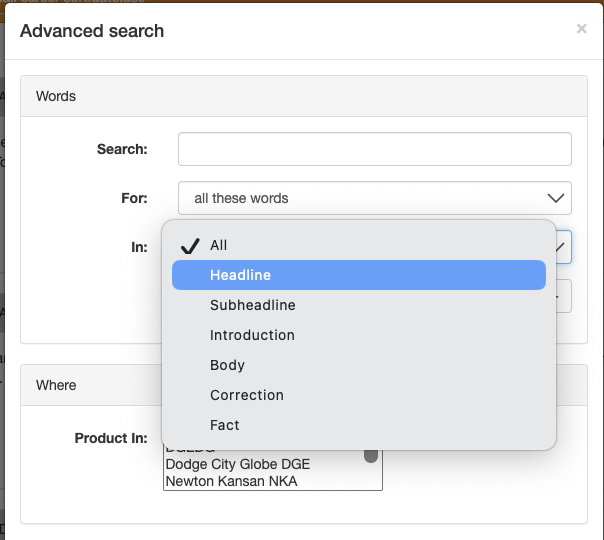
Additionally, there is the In option that allows users to limit the search to a particular part of an article, for example, the Headline, instead of anywhere in the article.
Searching by date
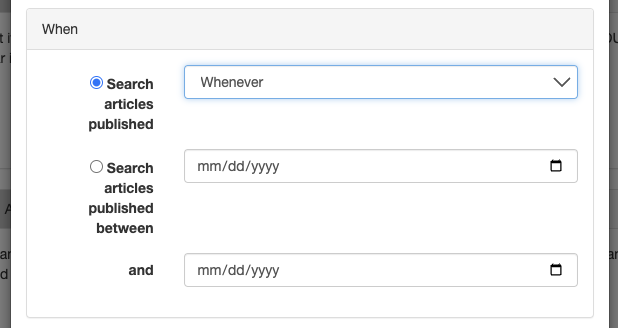
There is also an option to limit your search by date using the When section of the Advanced Search dialog.
Search Results
After searching, the results are presented in a list including the number of results as shown earlier in this document.
Clicking into an article will show the full text of the article, any images, captions, and if available, a PDF of the page.
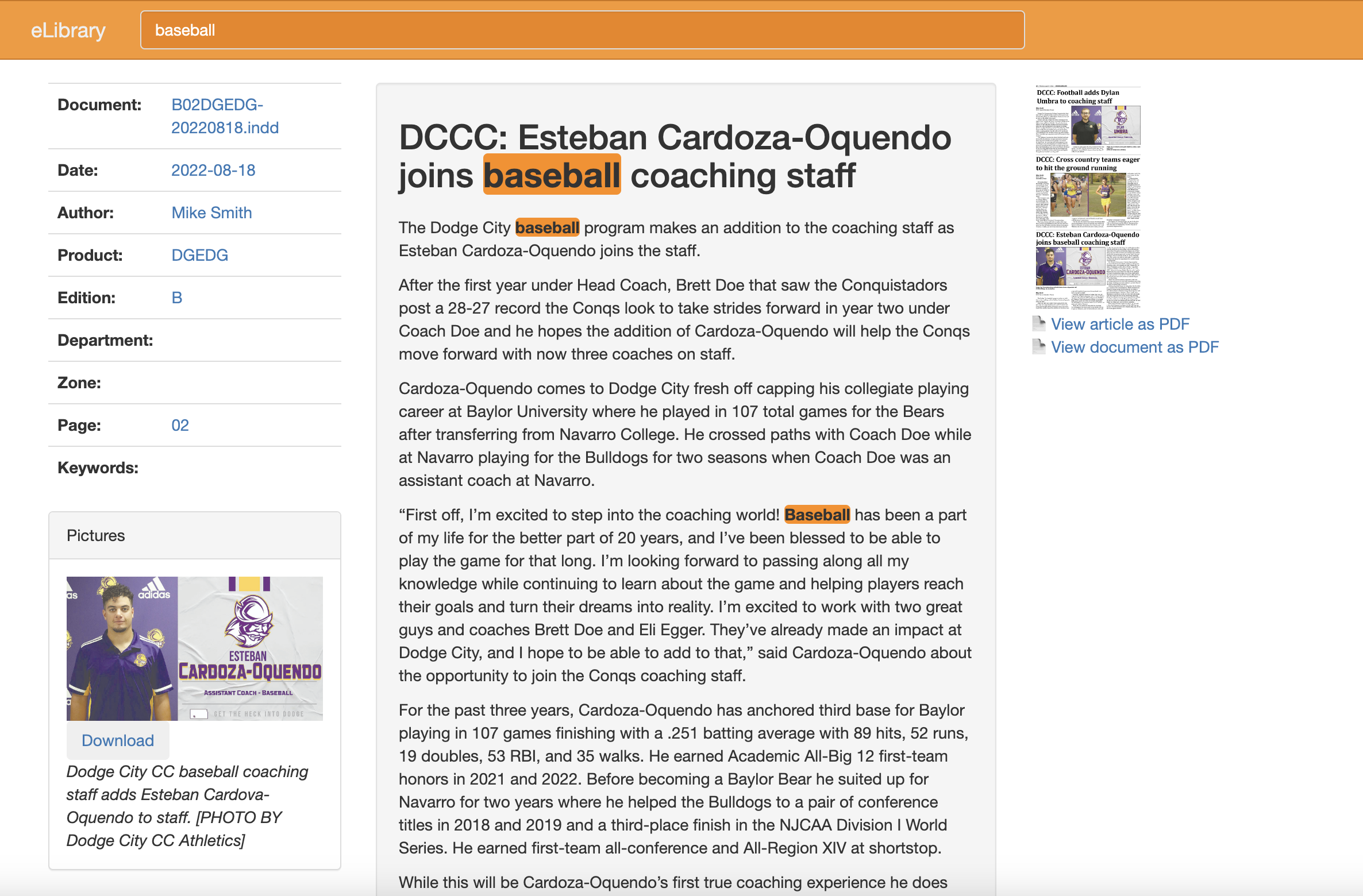
In the top left corner of the article is a section with information about the article. These include the Document, Date, Author, Product, Edition, Department, Zone, Page, and Keywords.
Document refers to the name of the InDesign document in which the article was placed.
Clicking on any one of the values in this area will perform a search for articles matching that criteria. For example, if you click on the link next to the Document field, the resulting search will locate all the articles placed on that document.
Searching eLibrary using ScoopEdit
The Search function in ScoopEdit has the ability to search eLibrary without requiring you to open a browser and navigate to the eLibrary site.
Configuring the Search dialog
In the ScoopEdit Main Window the Icon Ribbon show several icons highlighted below.
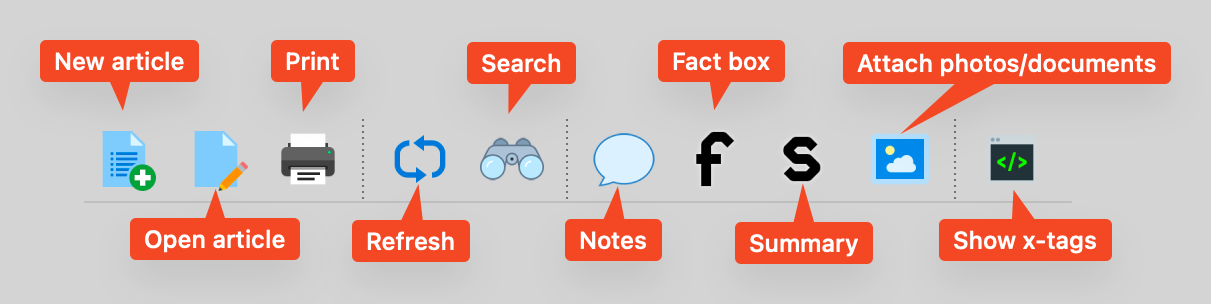
The fifth icon from the left is the Search icon. Clicking this icon will open the Default Search dialog shown below.
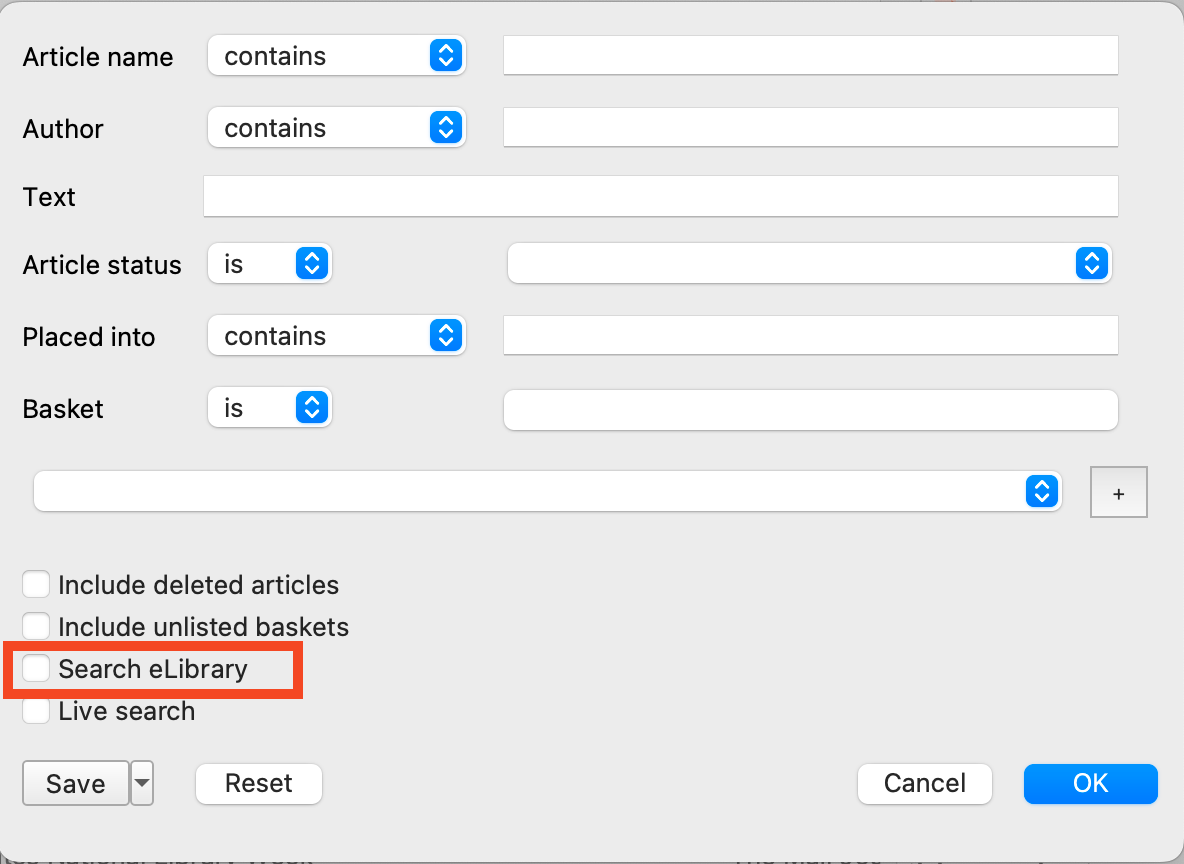
By placing a checkmark in the highlighted Search eLibrary option will change the available options in the dialog to be those available to searching eLibrary. The resulting changes produce a dialog similar toe the one shown below.
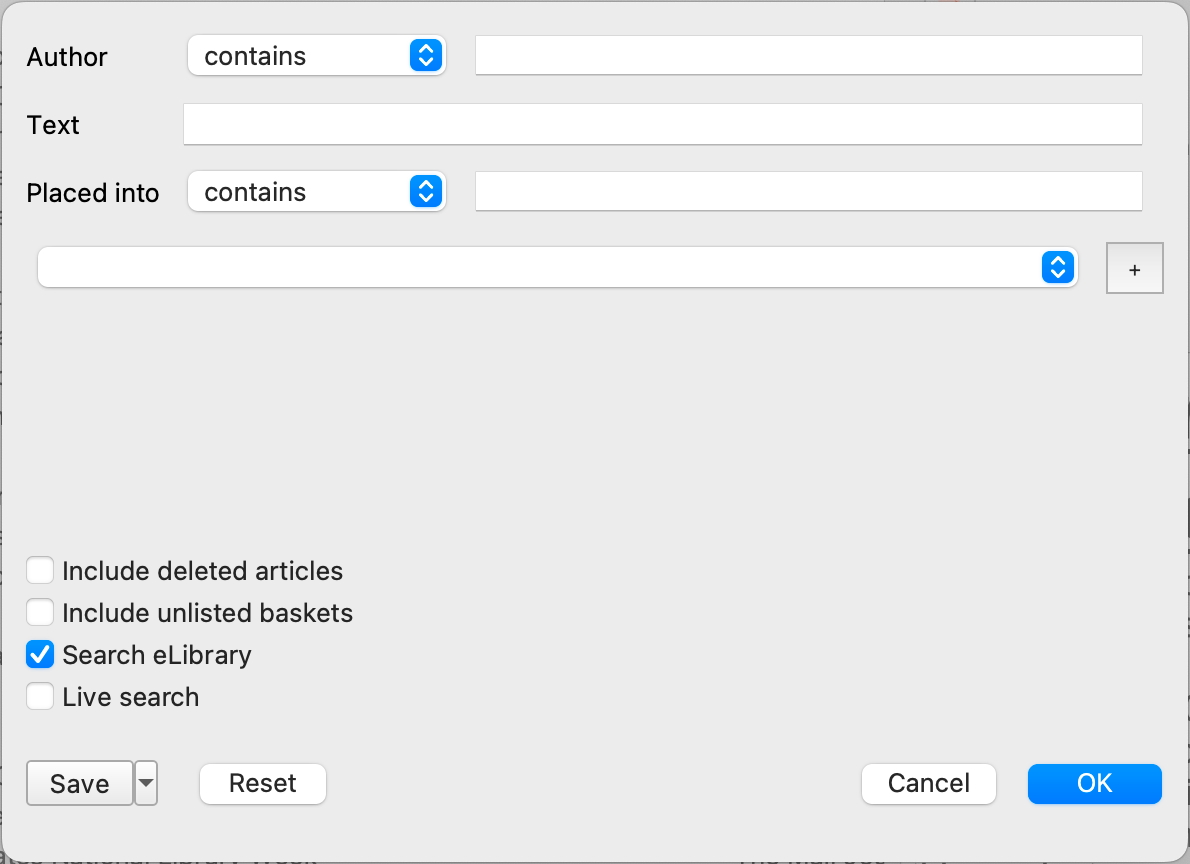
Simple search
In the example shown below, the Text field has been filled with the word calendar. Clicking OK on this dialog will result in a search of the eLibrary database for the word in the Text field.
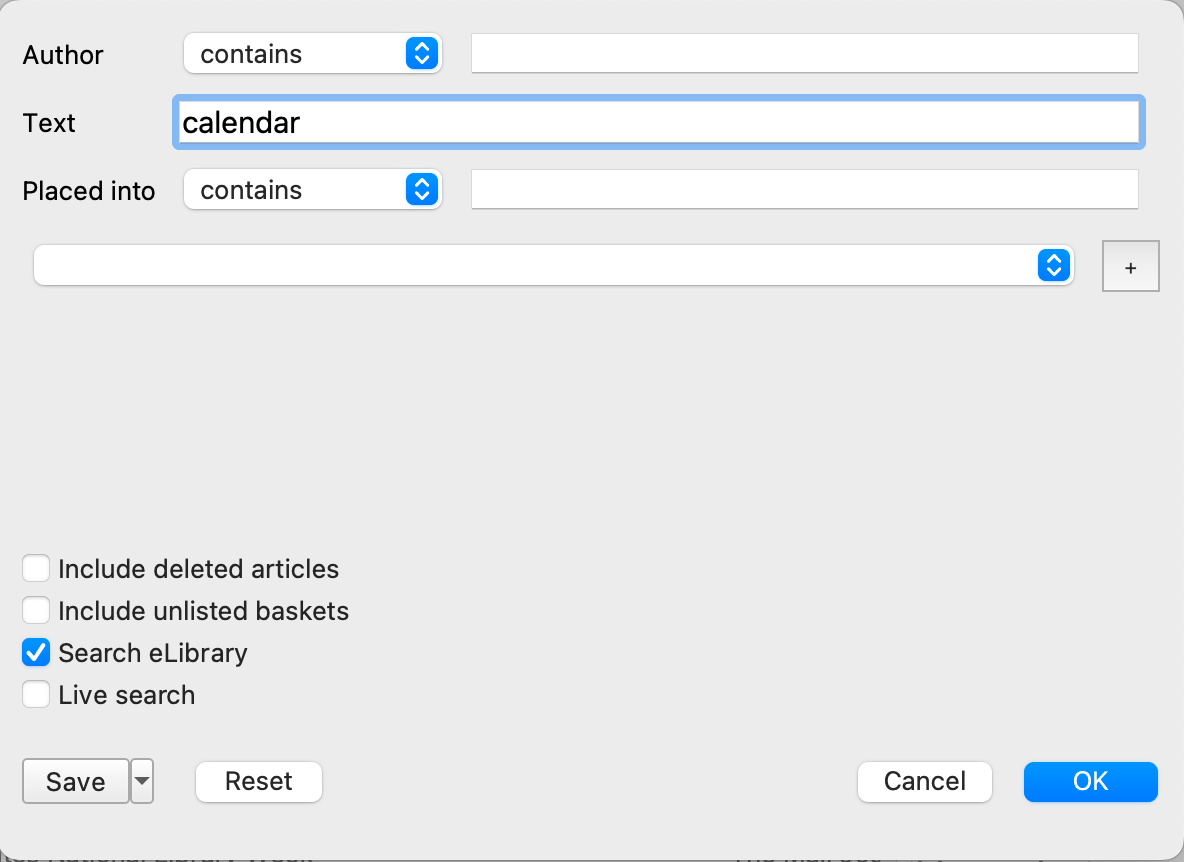
Additional search options
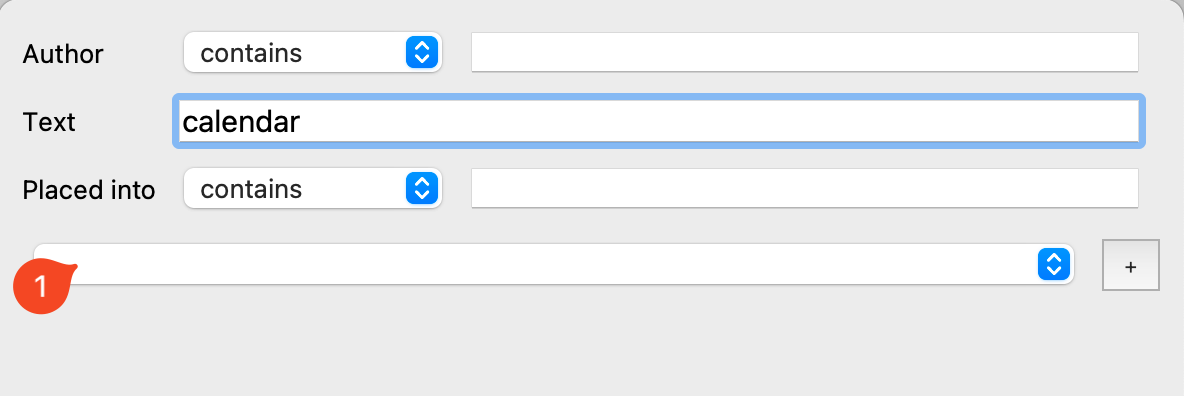
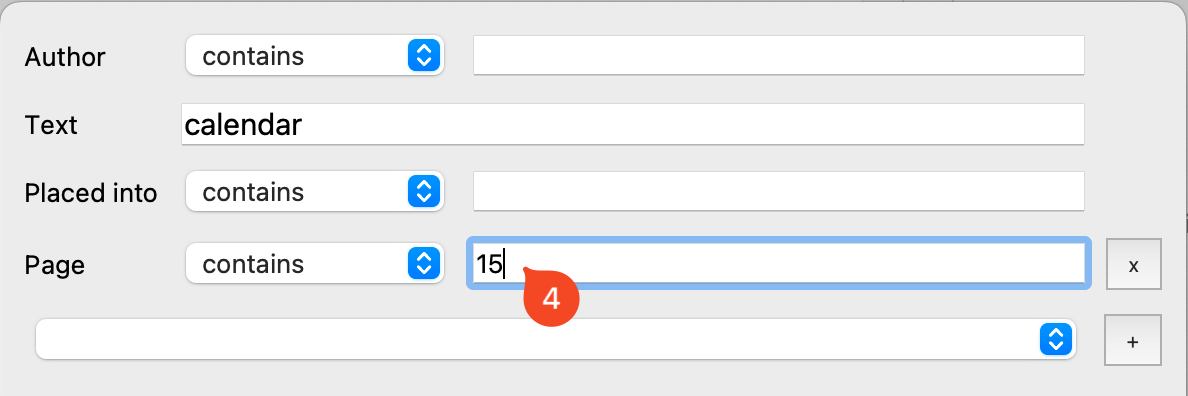
While the default fields of Author, Text, and Placed into are present when setting the Search elibrary the fourth line of the dialog is designed to allow for the addition of other search options and parameters.
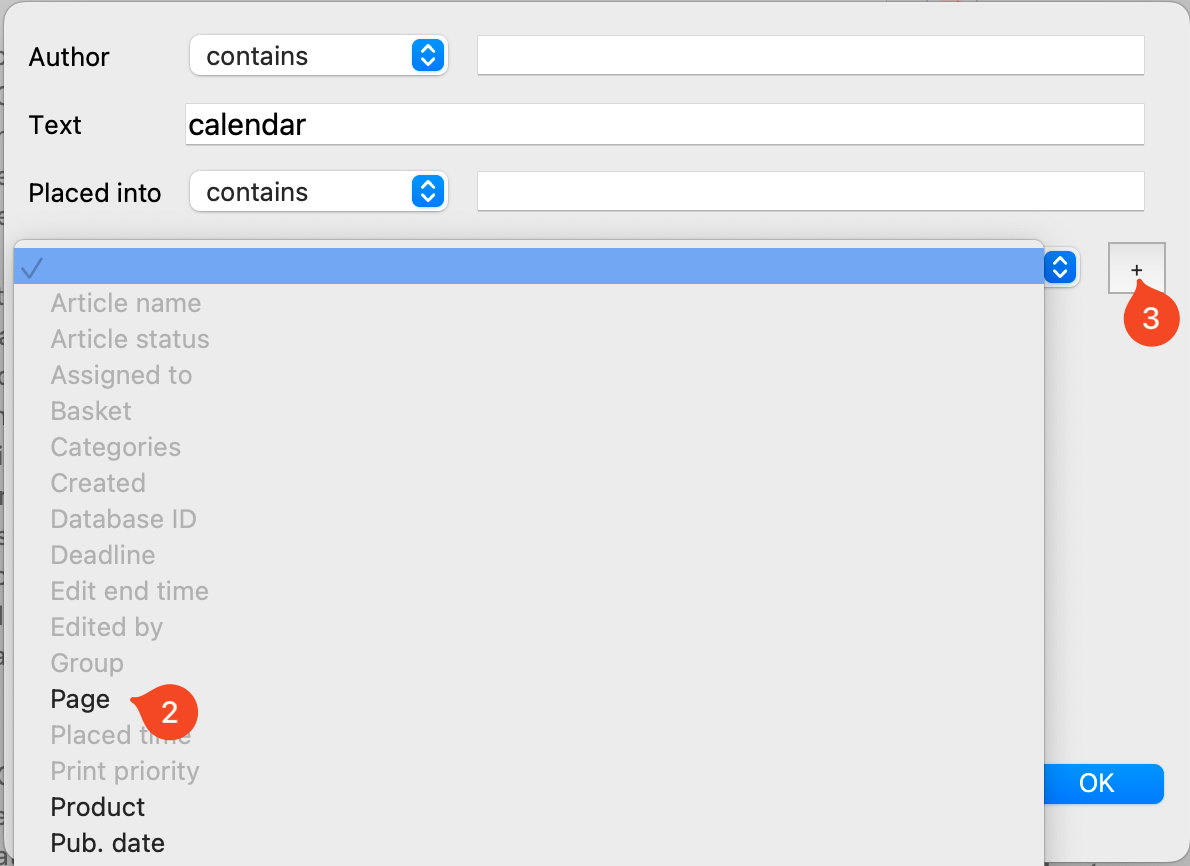
- Clicking on the fourth line will provide a list of the additional available fields.
- Selecting the field you would like to add.
- Click the plus button to the right will add that field to the list of criteria.
- The user will then enter the value they would like to search for.
Results
The results of the search will be displayed in the Article list in the ScoopEdt Main Window.
What can you do with eLibrary results
- The articles shown in the Article list can be read using the Preview window of ScoopEdit.
- These articles can also be selected and dragged to any basket the user has Send to permissions. The result will be a new copy of the article being created. Nothing will be done to the source article in the eLibrary database.
- If the article has attachments, copies of those attachments are carried with the new copy of the article.
- Photos attached to articles in eLibrary, can be downloaded individually to be applied to new articles.