It is possible to configure Scoop7 to receive email through Content Manager. This would be handled by your SCS Support Team. Each customer will have their own email address for sending articles into Scoop.
When an email is sent to Scoop, the content of the email as well as the attachments are imported to create an article. The article will be placed in a basket within the system. That basket may be the sender’s personal basket or some other basket in the system. Your SCS Support Team will discuss this with you and cover the details of your individual configuration.
Subject line
The Subject line of the email sent to Scoop will be included in the body of the resulting article unless an Article Name is defined in the Subject line.
There is an optional tag that can be used in the Subject of the email to allow a user to specify the Article Name of the resulting article. The tag is AN: (followed by a space).
The tag includes a space after the colon in the example shown below in the example. Be sure the tag is written as
AN:<space>
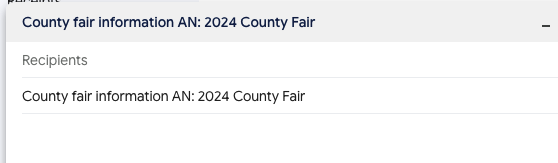
The text in the Subject of an email after “AN: “ will be used as the Article Name. In the screenshot below you will see the subject of an email. If this email was sent into Scoop, it would result in an article named 2024 County Fair. It is important to realize there is a space after the colon in the subject line.
If there is no “AN: “ tag in the subject, the name of the article will be a collection of the sender’s email address followed by the time and date the email arrived. Articles can always be renamed in Scoop as you know.
Email body
When an email is imported into Scoop as an article the subject and body of the email are imported as the article in Scoop. As noted earlier, if the subject line does not contain the AN: tag, the entire subject is included in the article. If the AN: tag is used, the subject is omitted from the article body and the Article Name specified after the AN: tag is used.
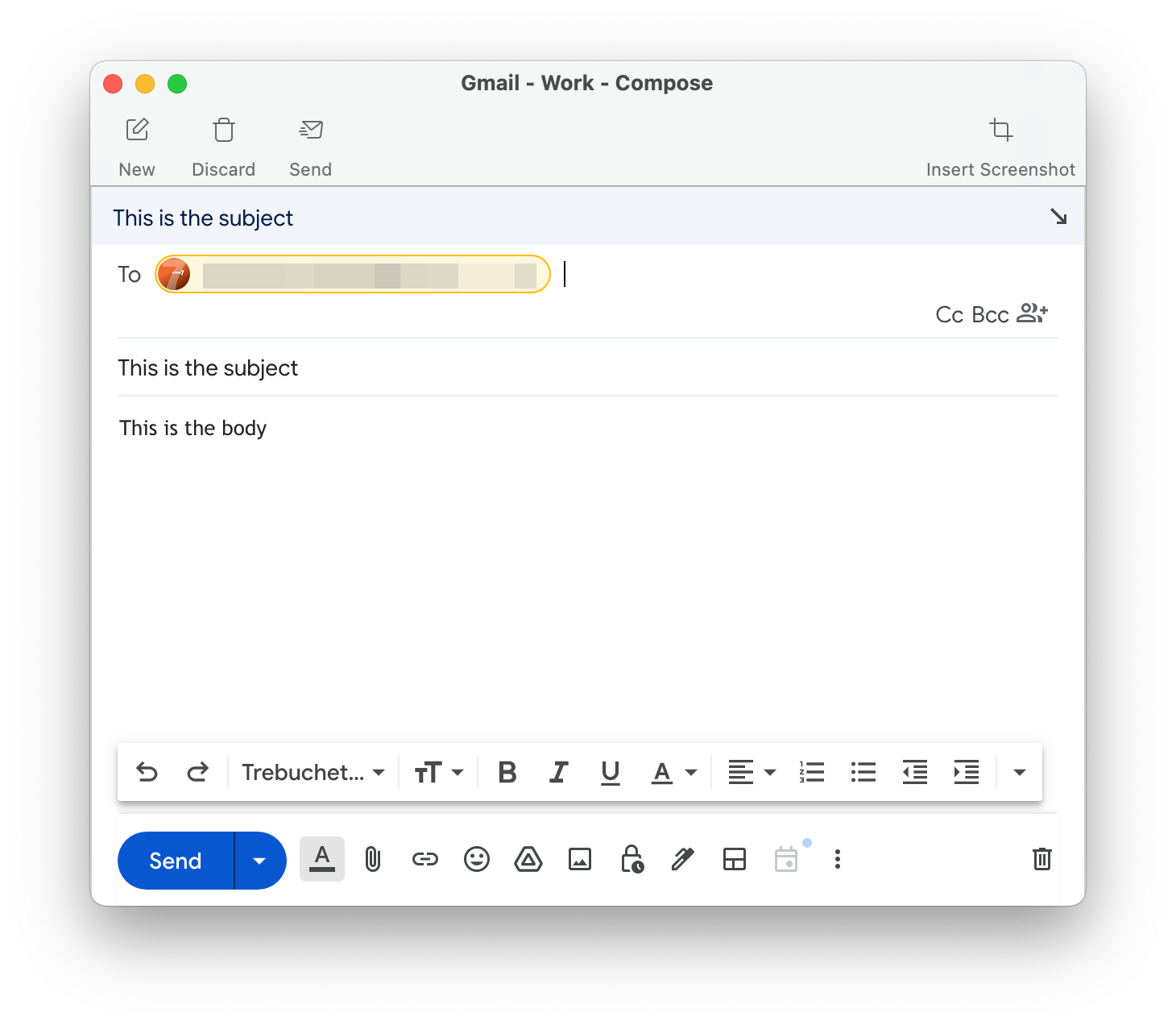 Example of an email being sent to Scoop
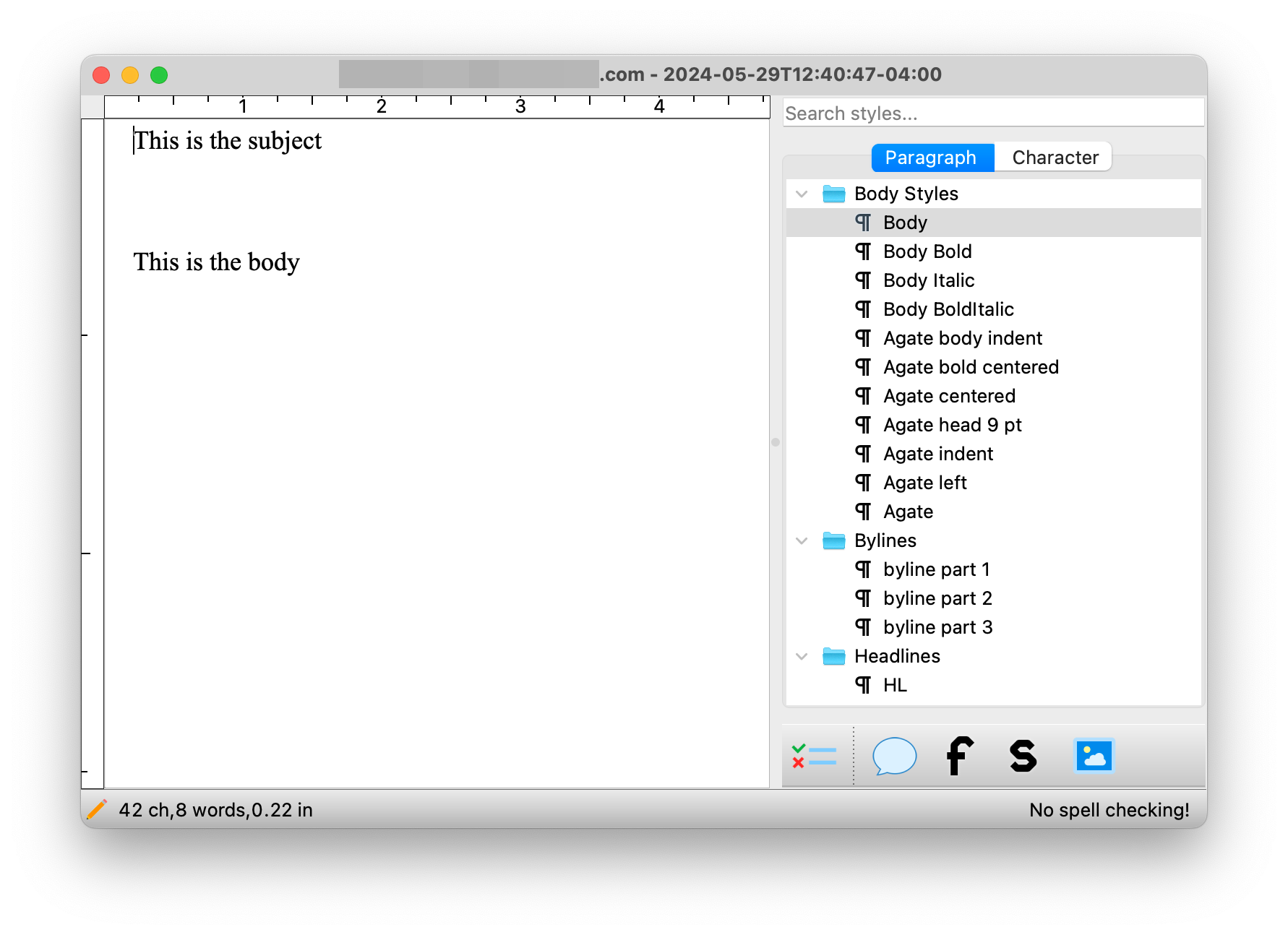 The result of the email sent to Scoop
The body of the email may contain a variety of content. Scoop will remove as much extraneous content as it can, but there may be items like URLs and other HTML styles that remain.
Additionally, items attached to the email will be attached to the article and, in some cases, imported into the article body.
Attachments
Attachments come in many formats and methods. For example, images might be attached to the original email as true attachments, or as in-line attachments. In either case, Scoop will attach the photos to the article in the same manner. In the case of text files, they will also be attached and, if possible, the content of the files imported into the body of the article.
In-line images
In the case of in-line images, the resulting story will contain references to each image and the name of the corresponding image will share that name. The name will appear in the article as <image1>. Please see the examples below.
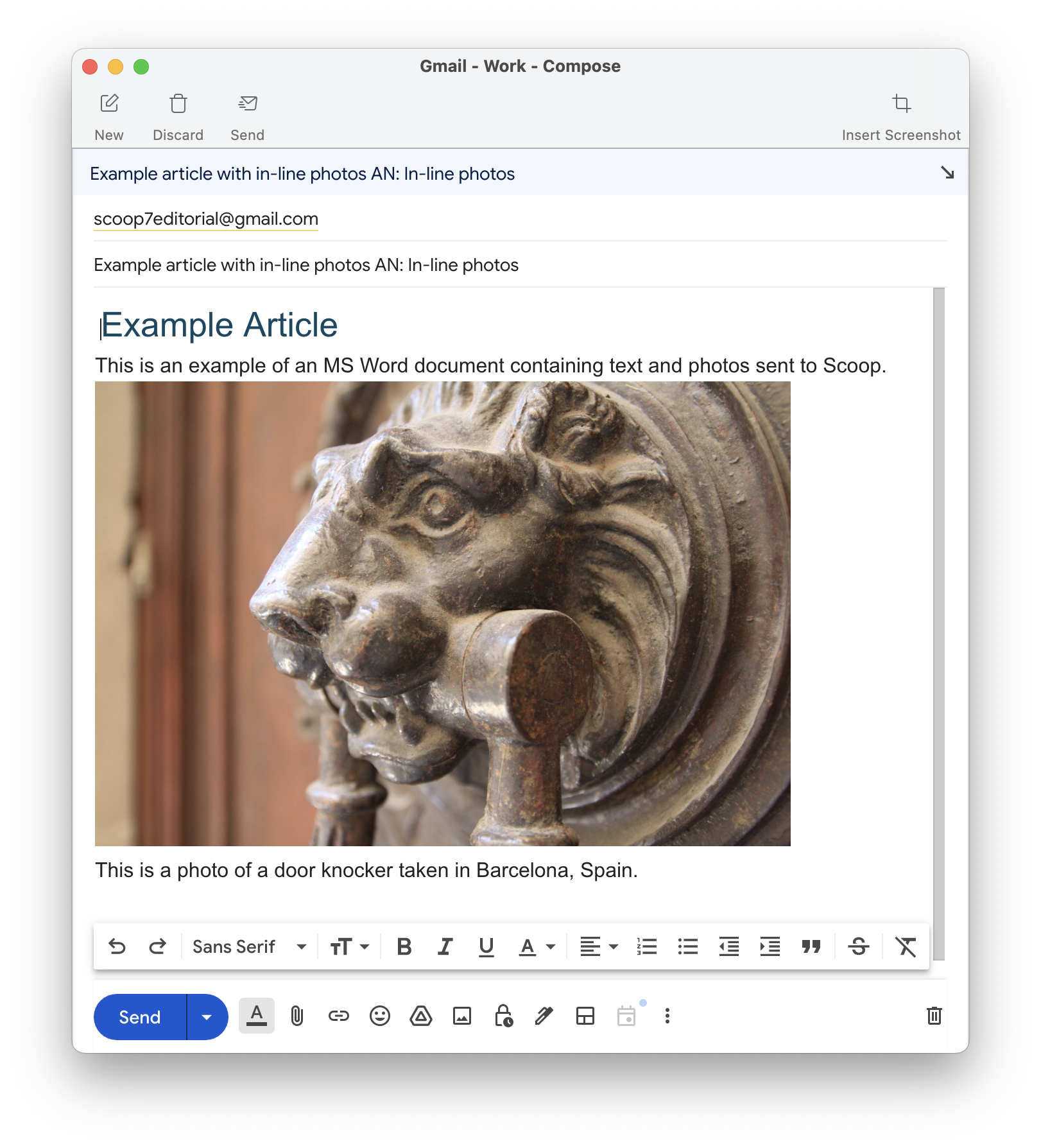 Example email containing in-line photos.
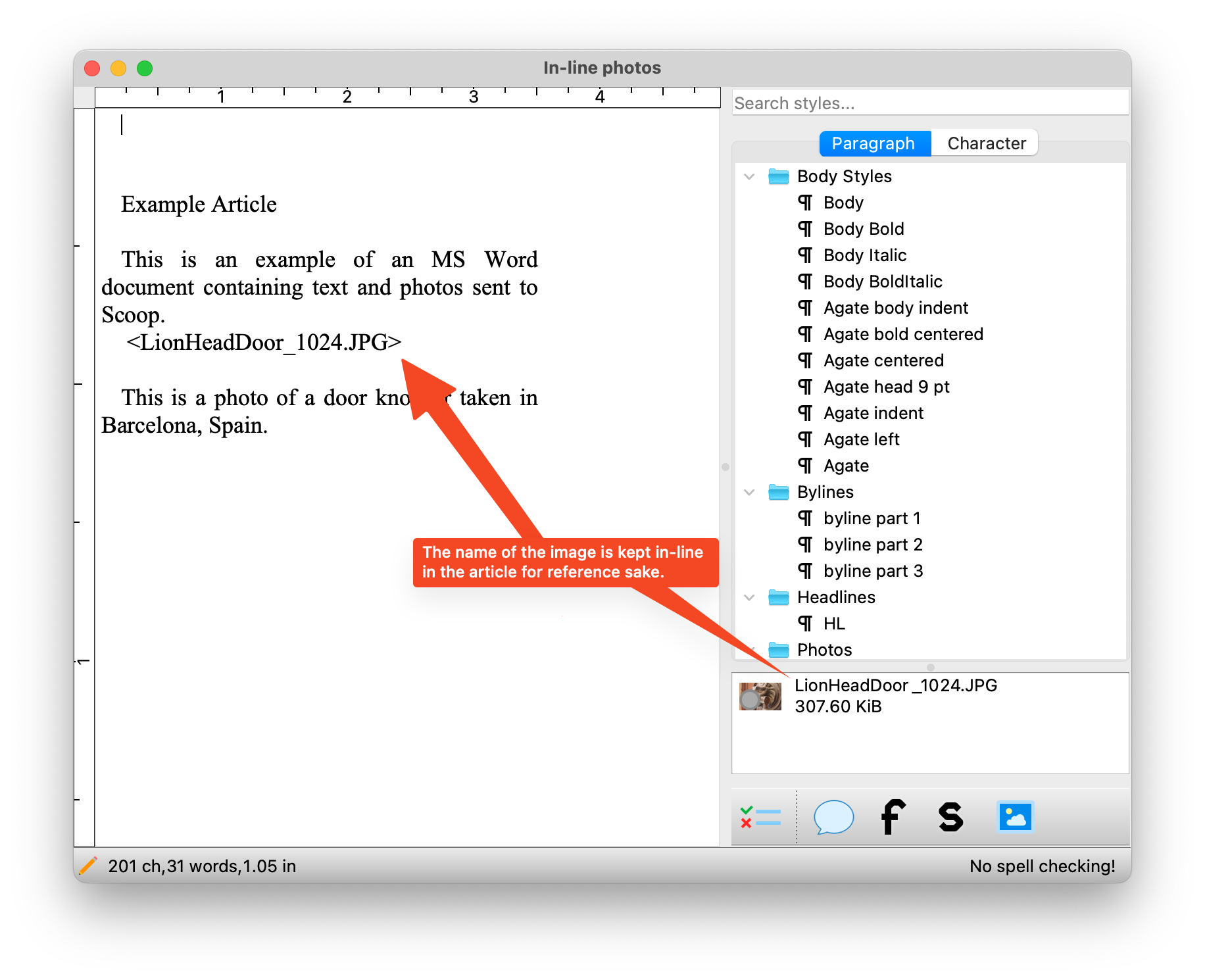 This is the result of the images emailed in-line.
Attached images
Images attached to an email will be attached to the articles. If the images contain an embedded Caption/Description, it will be available in Scoop.
Attached text files - Docx, PDF, TXT, ODT, RTF, and more
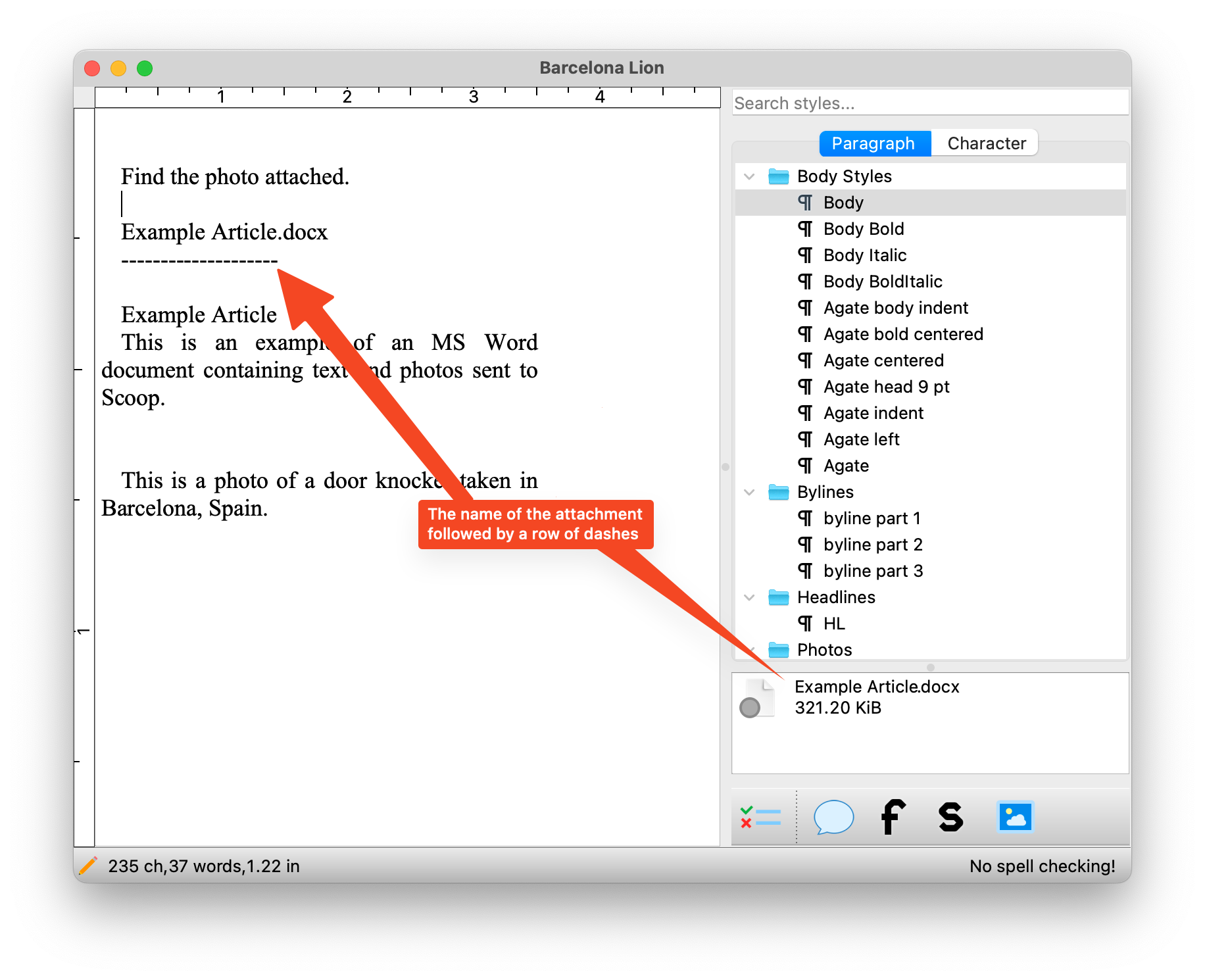
Attachments are processed by Scoop upon receipt and if possible, their contents are imported. In the case of file formats like Microsoft Word, Adobe PDF, and other text formats, the text is imported into the article body. For each text-based attachment, the file name is inserted into the article, followed by a row of dashes.
Exceptions
If a Microsoft Word document contains inline images, those images will not be extracted from the attached document. In this case, the suggested workflow would be to open the Microsoft Word document, extract and save the image(s) to your workstation and then attach them to the article manually.
In the example below you will see a Microsoft Word document that contains an image, but you will notice the resulting article, while it contains the attached Microsoft Word document, does not include the image. Instructions on opening the Microsoft Word document follow.
 Microsoft Word document with an in-line image
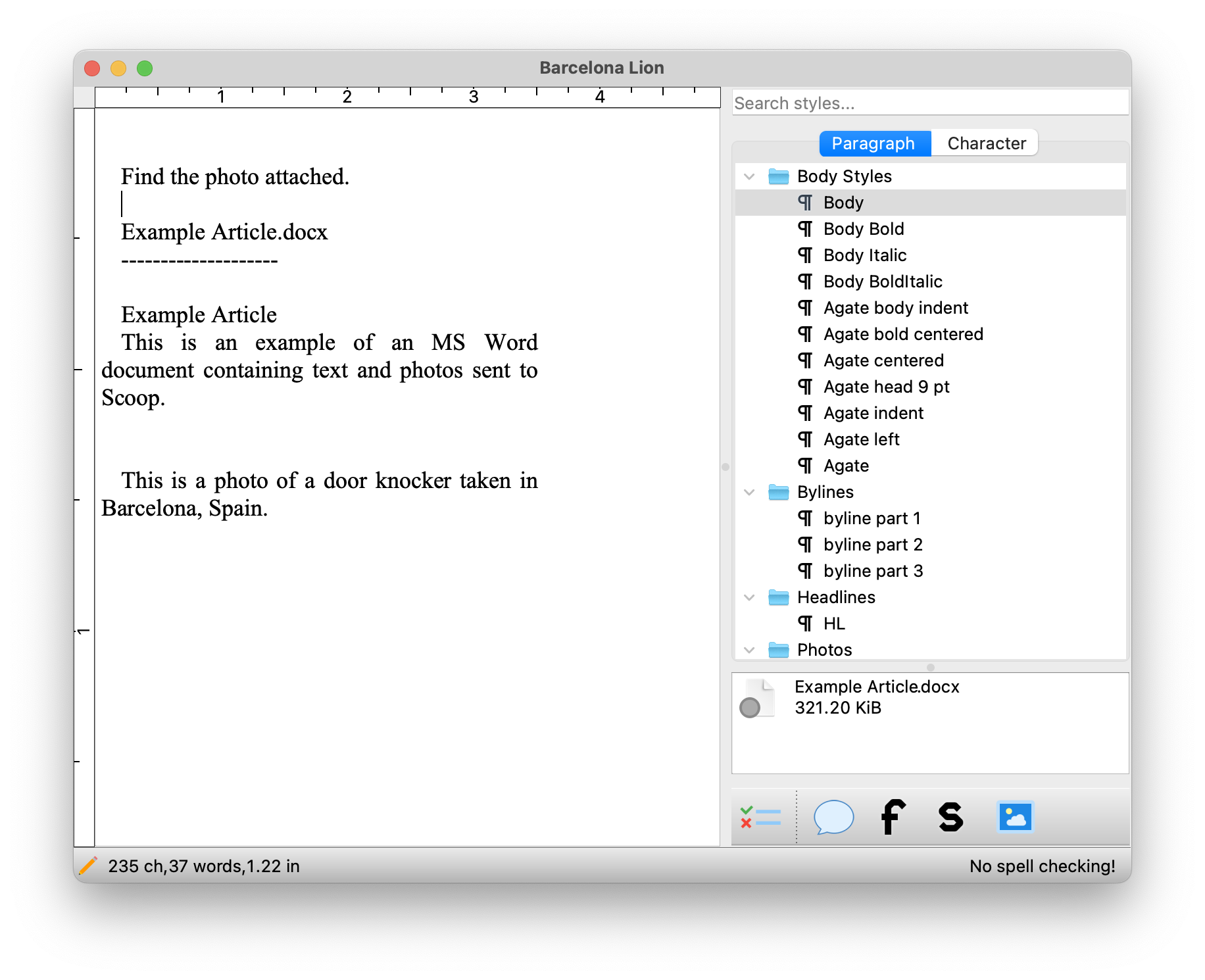 The result in this case is that the text based content has been imported, but the image is not extracted.
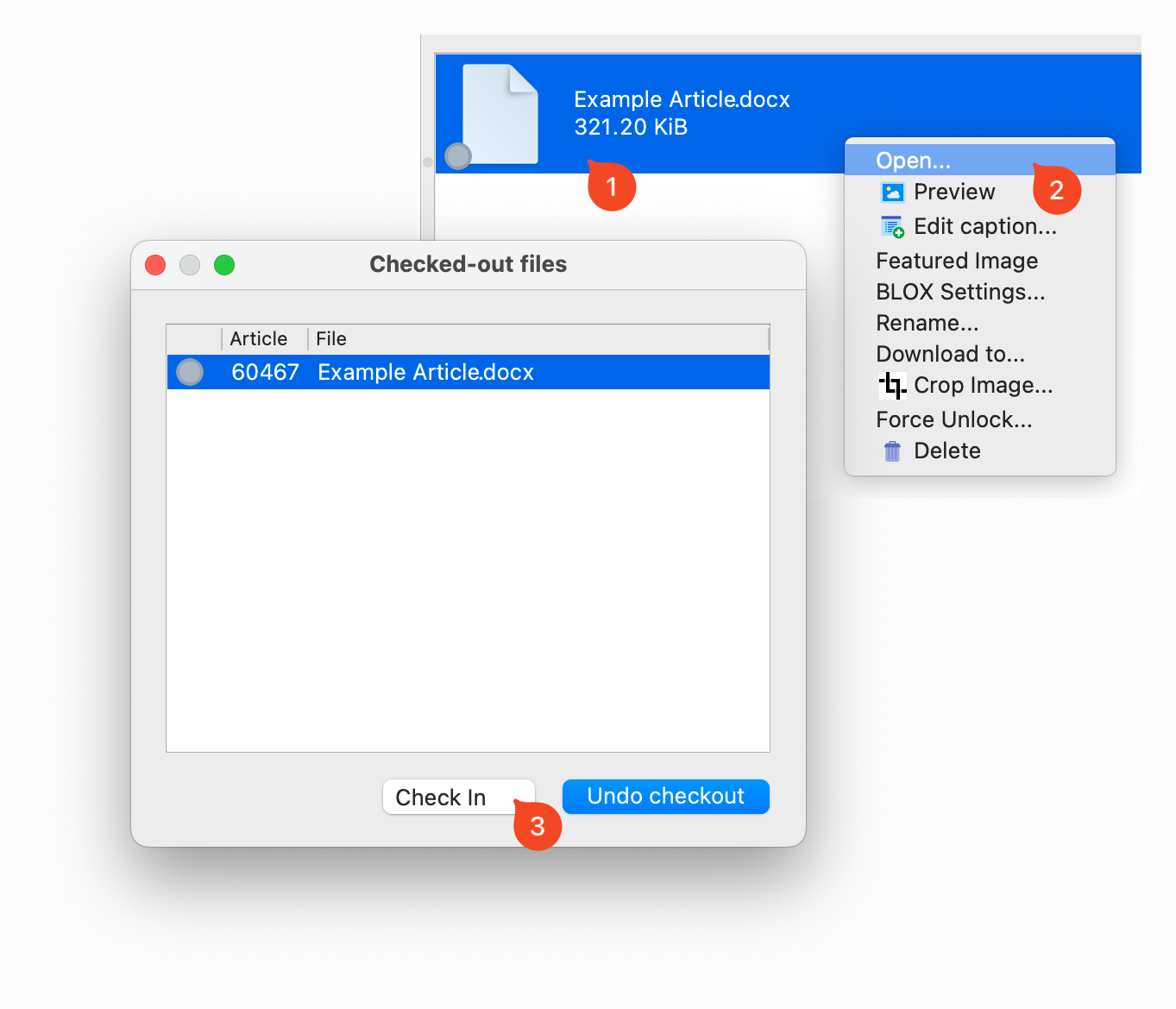
To open a Microsoft Word document or any attachment, users can
- Right-click on the attachment
- Choose Open. Doing so will result in the document being opened in the native application. After extracting the images or doing whatever work is necessary, be sure to close the document.
- Then check the file back into Scoop.
![Check-in]() Opening a file from Scoop and checking it back in.
Opening a file from Scoop and checking it back in.